
Introduction to Vintage Gateway
If you have a Commodore 64, an AltairDuino running CP/M, or any terminal that speaks telnet, Vintage Gateway gives you file transfers, SSH access to remote servers, and AI chat — all from a single telnet connection. I’ve tested this with IMP8 on the Altairduino. IMP8 is on a a default floppy disk image that usually ships with your Altairduino. To see how to use this, visit the link for getting the Altairduino on the Internet.
**Important** For retro hardware, you will usually need to run a lower baud rate, such as 9600bps.
Vintage Gateway is a Rust server that listens on port 2323 (configurable) and serves three features through a simple menu-driven interface:
- File Transfer — Upload and download files using the XMODEM protocol with CRC-16 error checking and automatic checksum fallback
- SSH Gateway — Connect through the server to any SSH host, letting telnet-only hardware reach modern servers
- AI Chat — Ask questions and get answers from a large language model, paginated to fit your screen.
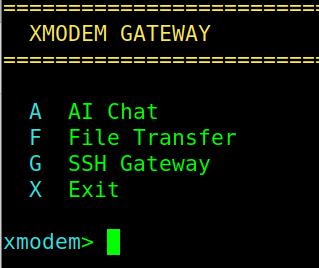
The server auto-detects your terminal type when you connect. Press Backspace, and it figures out whether you are on a Commodore 64 (PETSCII), a modern terminal (ANSI), or a plain text connection (ASCII). Output is adapted accordingly — 40-column layouts for the C64, ANSI color codes for modern terminals, and clean plain text for everything else.
Setting up Vintage Gateway
Install Rust if you do not have it:
sudo apt install build-essential cmake
curl --proto '=https' --tlsv1.2 -sSf https://sh.rustup.rs | sh
Clone and build:
git clone https://github.com/rickybryce/vintage-gateway.git
cd vintage-gateway
cargo build --release
./target/release/vintage-gateway
On first run, the server creates vgateway.conf with default settings and a transfer/ directory for files. Connect from any machine on your network:
telnet 192.168.1.100 2323

If you are using an Altairduino with IMP8:
* Hit T to go into terminal mode
* Connect to the server.  For example, with my modem, I type: atdt 192.168.1.100:2323
* At this point follow the prompts.  Hit backspace to detect your terminal type, and press N for ANSI color.
Transferring files using Vintage Gateway
From the main menu, press F for File Transfer. Press U to upload or D to download. For uploads, enter a filename, then start your terminal program’s XMODEM send. For downloads, select a file from the list and start XMODEM receive on your end. The server supports CRC-16 and checksum modes, negotiated automatically with your client.
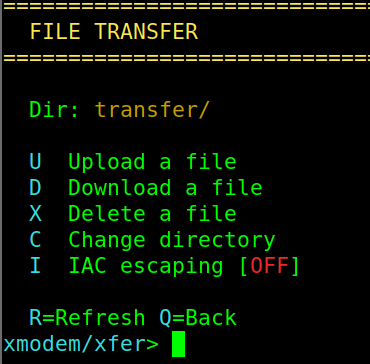
If you have sub-directories under the transfer directory, hit C to change directories.
If you are transferring binary files that contain 0xFF bytes, you may need to toggle I to enable IAC escaping, which prevents the telnet protocol from misinterpreting data bytes as commands.
SSH Gateway
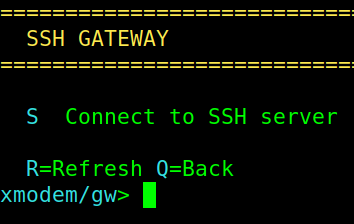
Press G then S from the main menu. Enter a hostname, port, username, and password. You get a full interactive shell on the remote machine. For PETSCII and ASCII terminals, the server strips ANSI escape sequences so the output is readable. Press X from the main menu to exit.
AI Chat
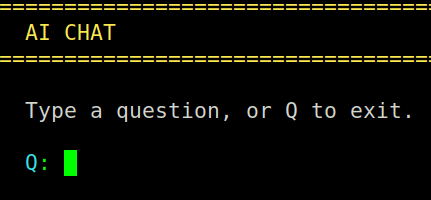
Press A from the main menu. Type a question and the server sends it to the Groq API, displaying the response with pagination. To enable this feature, create a free account at https://console.groq.com, generate an API key, and add it to vgateway.conf:
“`
groq_api_key = gsk_your_key_here
Security
Telnet is inherently cleartext. This server is designed for local and private networks only. You can enable username/password authentication in vgateway.conf by setting security_enabled = true and configuring your credentials. Failed login attempts are locked out per IP after three tries.
Source
The project is open source at my github repository. Written by Ricky Bryce with Claude (Anthropic) as co-author.
— Ricky Bryce